



Step by step registration of TikTok Shop in Poland - Instructions
|
Registration link |
|
|
Region |
Poland |
|
State of information |
1 June 2026 |
|
Purpose of the document |
Going through registration, verification and initial shop setup. |
Attention: According to an official announcement from the TikTok Newsroom, TikTok Shop will start operating for users in Poland on 15 June 2026. Vendor registration is now available via the link above.
TikTok Shop is now available for sellers in Poland at the account registration stage. If you want to prepare your shop before the start of sales, you can start the process via the official TikTok Shop Seller Center form:
Register a TikTok Shop account in Poland
Status as of 1 June 2026: the registration link for Polish sellers is now active. According to an official announcement from the TikTok Newsroom, TikTok Shop will be launched for users in Poland 15 June 2026.
Below you will find a practical step-by-step guide to go through the registration process. The process includes creating an account, selecting a business type, entering company details, verifying a representative, completing a warehouse address, setting up shipping, adding a product and completing bank account details.
Before you start
Prepare in advance:
Important: the data provided on the form should correspond with official documents and registers. Differences in company name, address or representative data may prolong verification.
Step 1 Enter the registration form
Open link:
https://seller-eu.tiktok.com/account/register?shop_region=PL
On the first screen you will see the „Register” panel. The region of the retailer should be set as Poland. Enter a phone number or email address, preferably a company email address, and then click „Continue”.
You can also use the option „Register with a TikTok account” if you want to link the registration to an existing TikTok account.
At this stage, you will also accept the required terms and conditions and consents related to the TikTok Shop, your business account, advertisements and payment processing through Stripe.
 TikTok Shop registration screen
Step 2. Select the type of activity
Once the account has been created, the system will ask: „What type of business do you run?”.
First select the country in which your company operates. For a Polish company, select „Poland”.
Then indicate the type of activity. You will see three main options on the screen:
Select the option that is compatible with the legal form of your company. If you are unsure, check the data in CEIDG or KRS before proceeding further.
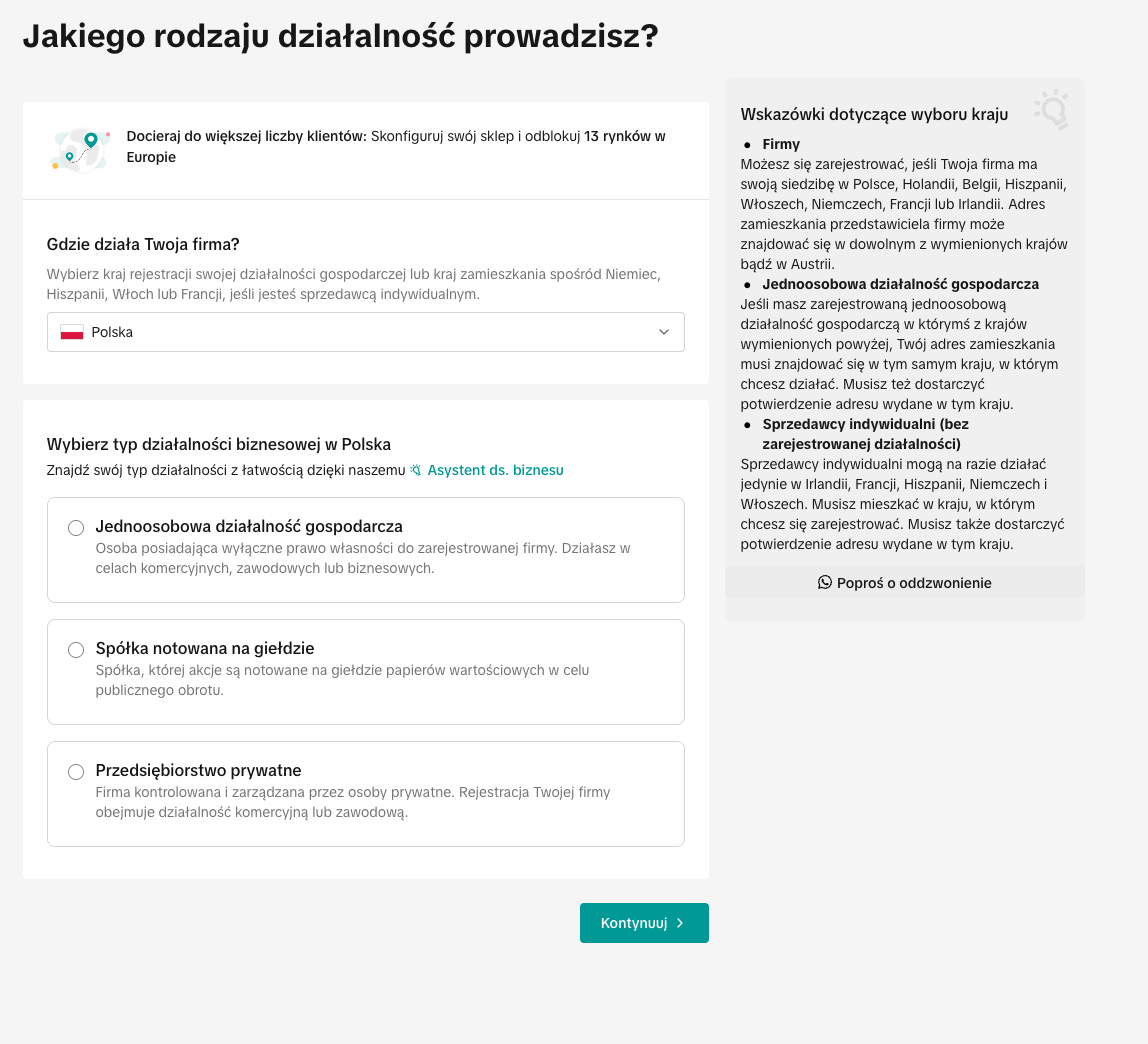 Choice of activity type
Step 3 Provide company information
In the next step, TikTok Shop asks for the company details. The system informs you that the company must be registered with the National Court Register, but allows you to enter your NIP or REGON number in the registration number field.
Complete:
The official company name should be entered exactly as it appears in the register. This also applies to special characters, abbreviations, spaces and punctuation.
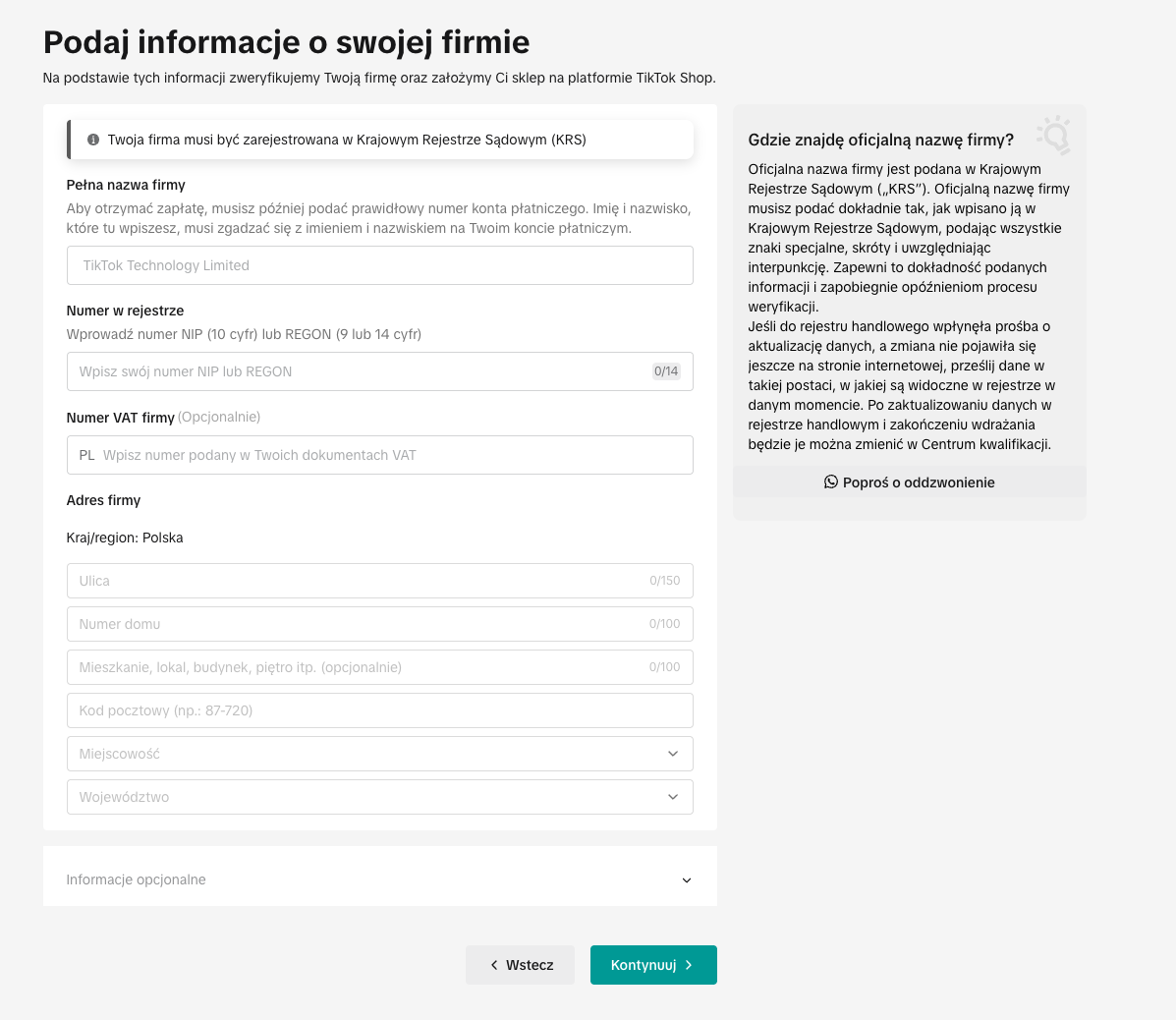 Company data in the TikTok Shop
Step 4 Enter the details of the company representative
You will then complete the details of the person representing the company. TikTok Shop asks you to indicate the role of this person in the company.
The choices include:
Select the role according to the actual rights. In the case of an owner or authorised person, the system may require confirmation that the person has the right to represent the company.
This screen also asks whether the representative is the beneficial owner. A beneficial owner is someone who owns or controls a significant part of the company, for example, more than 25% shares. If you select „Yes”, the system may ask for additional data.
Next, select a document for identity verification. Options available include:
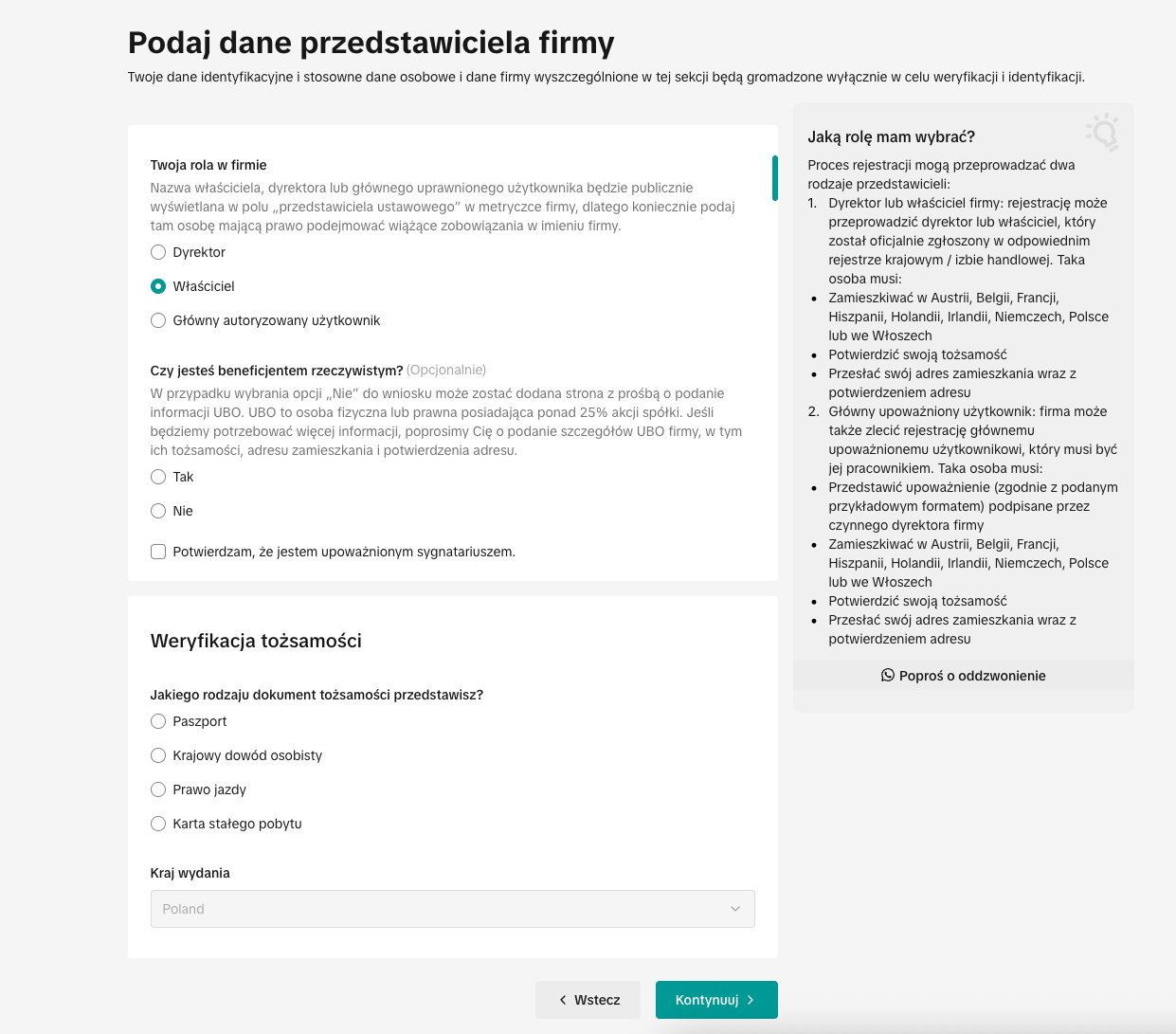 Details of company representative
Step 5 Verify identity
Once the document has been selected, the system will initiate identity verification. A QR code will appear on the screen, which must be scanned with the phone to go through the document confirmation process.
If you are unable to use your phone, select „Try on a computer”.
Important: do not close the process during verification, as unsaved changes may be lost.
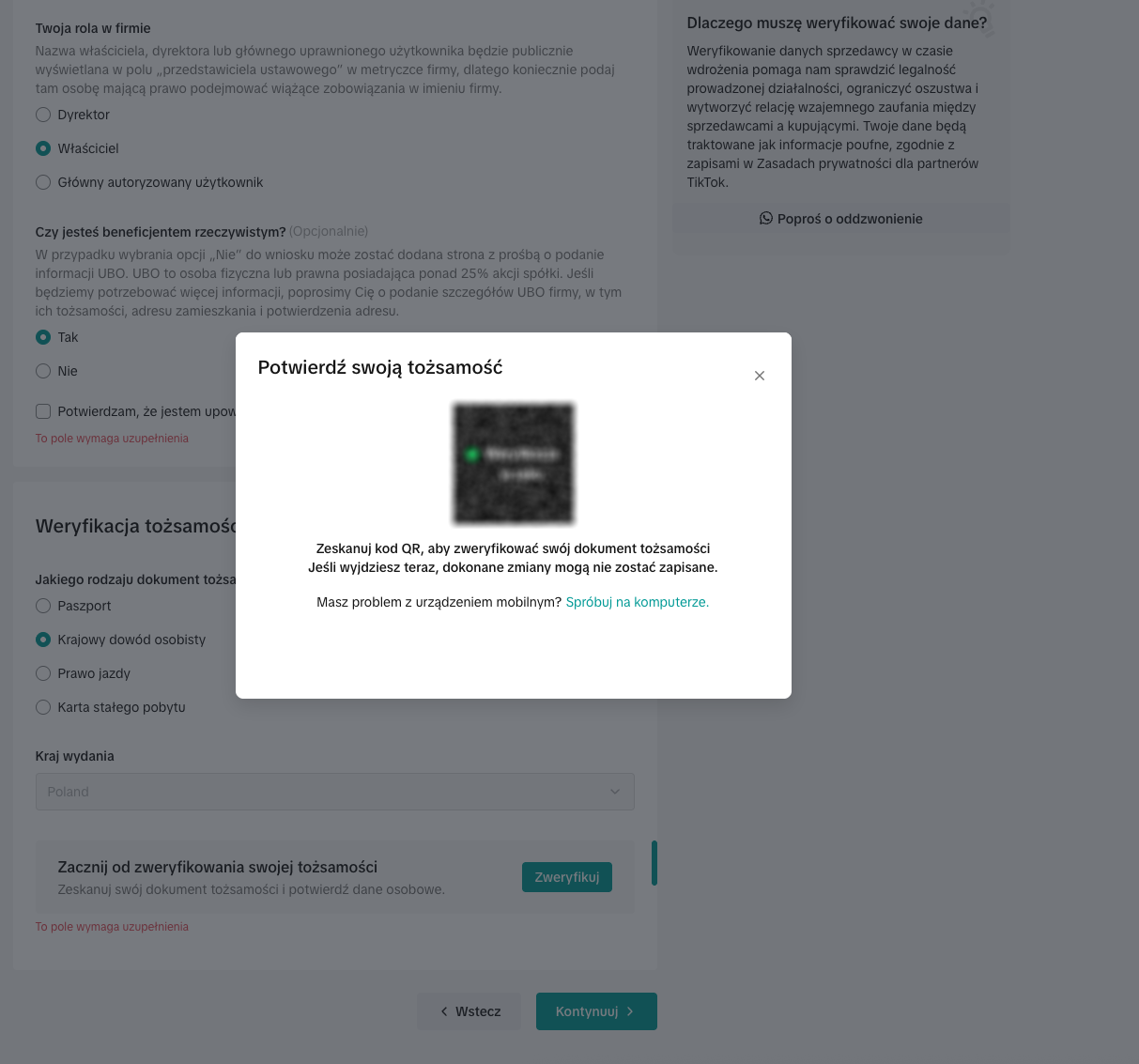 Verification of identity by code QR
Step 6 Complete the document details and address of residence
Once verification has begun, the TikTok Shop may ask for additional document details and the representative's home address.
Among other things, the visible screen should state:
The system also requires a document to prove the address of residence. This could be, for example:
The document should be up-to-date, legible and consistent with the address provided. Acceptable formats are JPEG, JPG, PNG or PDF and the file should not exceed 4 MB.
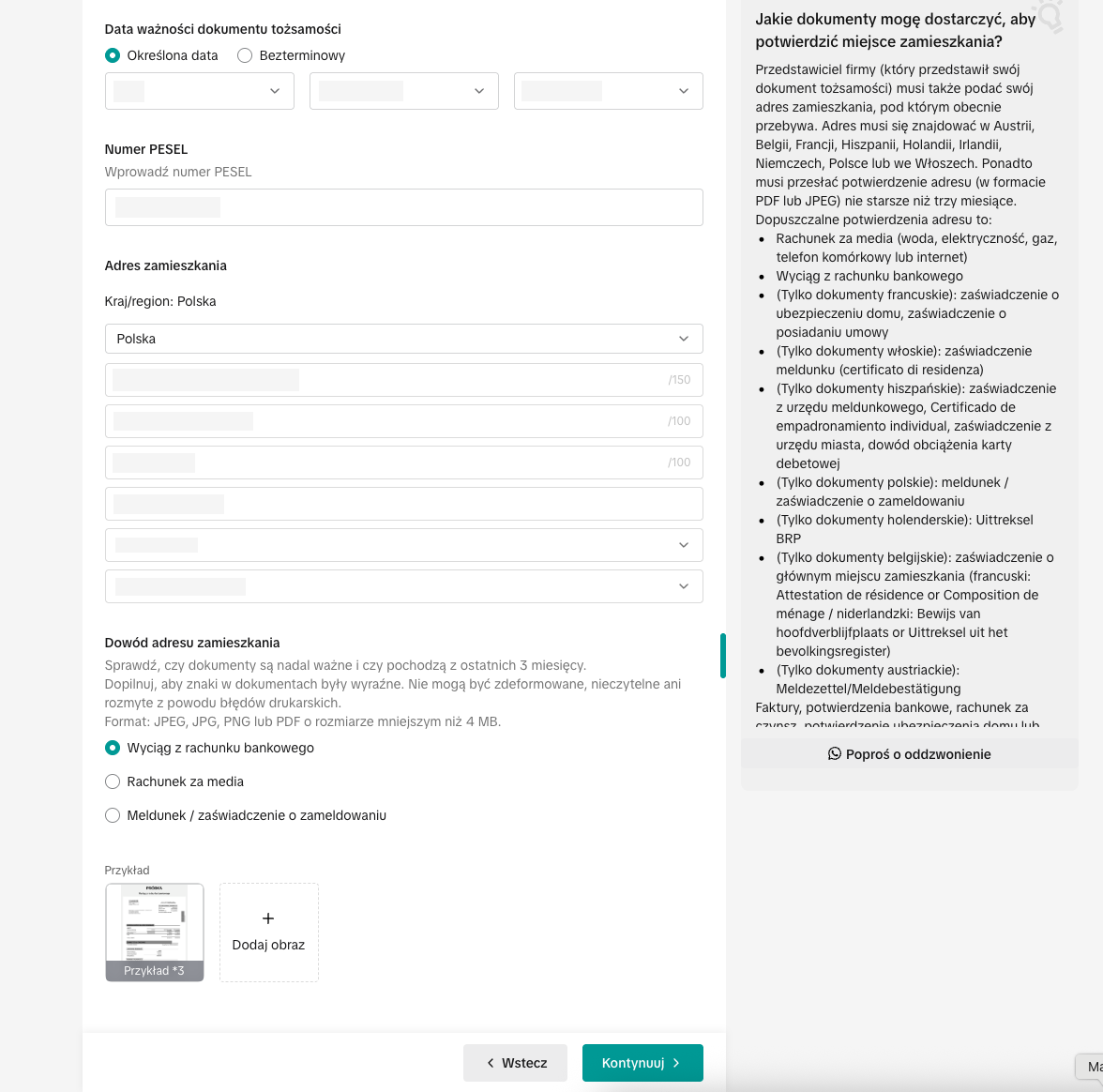 Residential address and address confirmation
Step 7 Wait for the shop to be checked
Once the data has been submitted, the shop goes for verification. TikTok Shop reports that it usually takes between 1 and 3 working days to verify a shop.
At this time, you can move on to the next elements of the configuration:
At this stage, products may not yet be visible to customers. They will only be published once verification is complete.
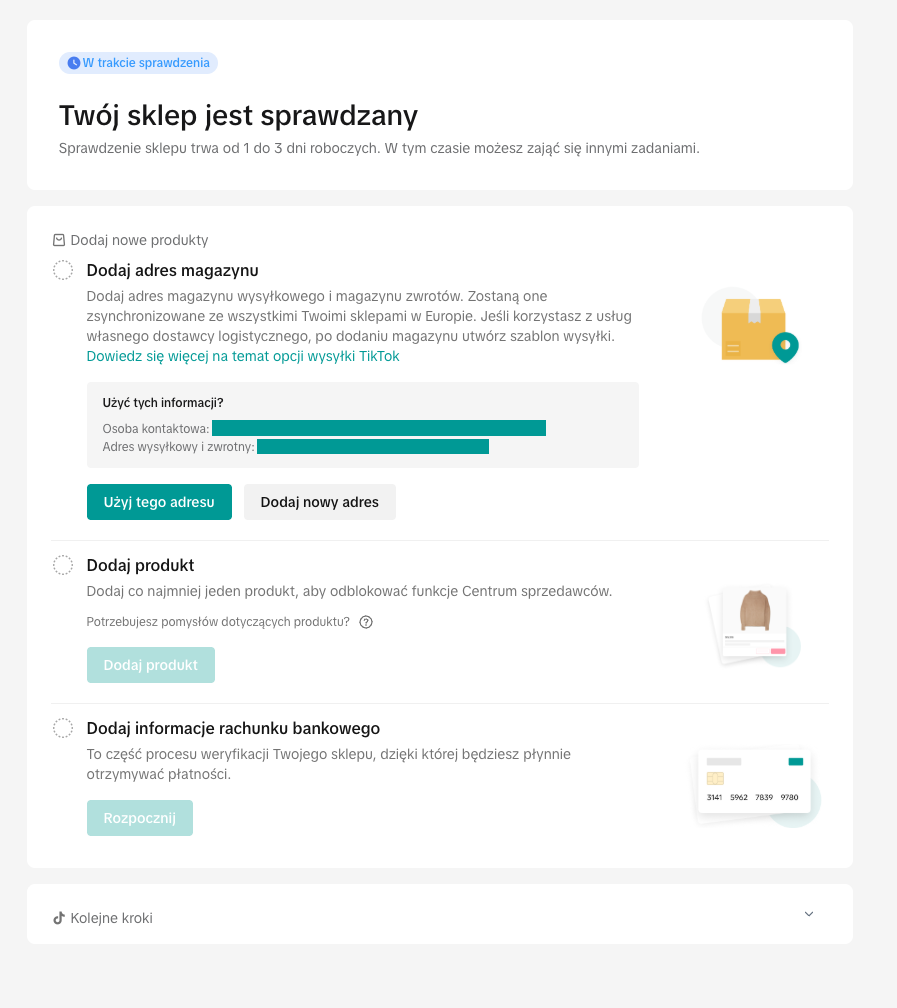 Shop under review
Step 8 Add warehouse address
The address of the warehouse is needed to handle logistics, shipments and returns. You can use the data suggested by the system or add a new address.
Specify in the form:
You can tick the „Set as return address” option if the same address is also to be used for returns.
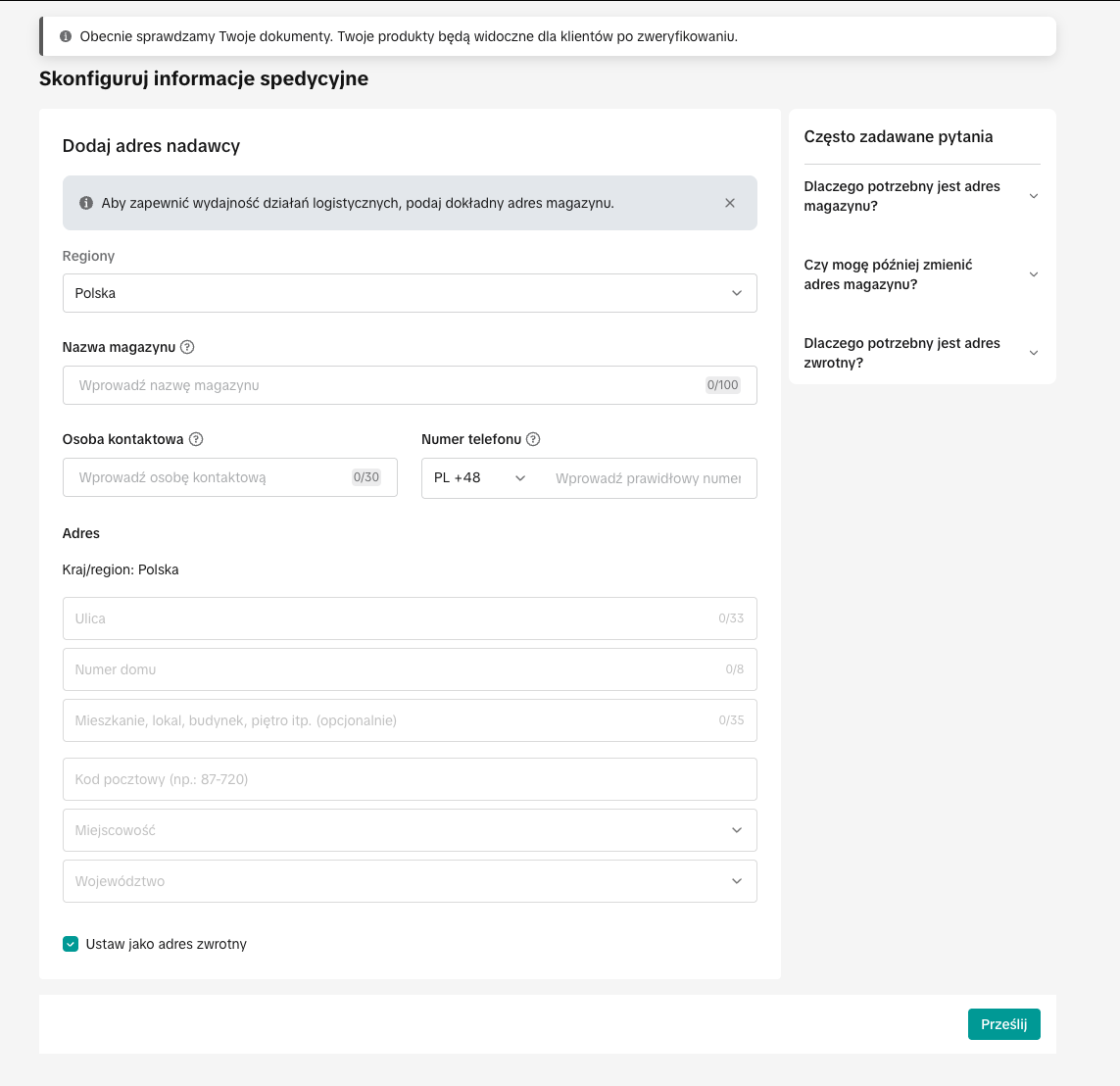 Adding a warehouse address
Step 9 Configure the shipping template
Once a warehouse has been added, the system may ask you to create a shipping template of the type „Shipped by vendor”.
In this step you set:
The shipping templates determine which delivery costs the customer will see during the purchase. Please check that the rates and regions are correct before saving.
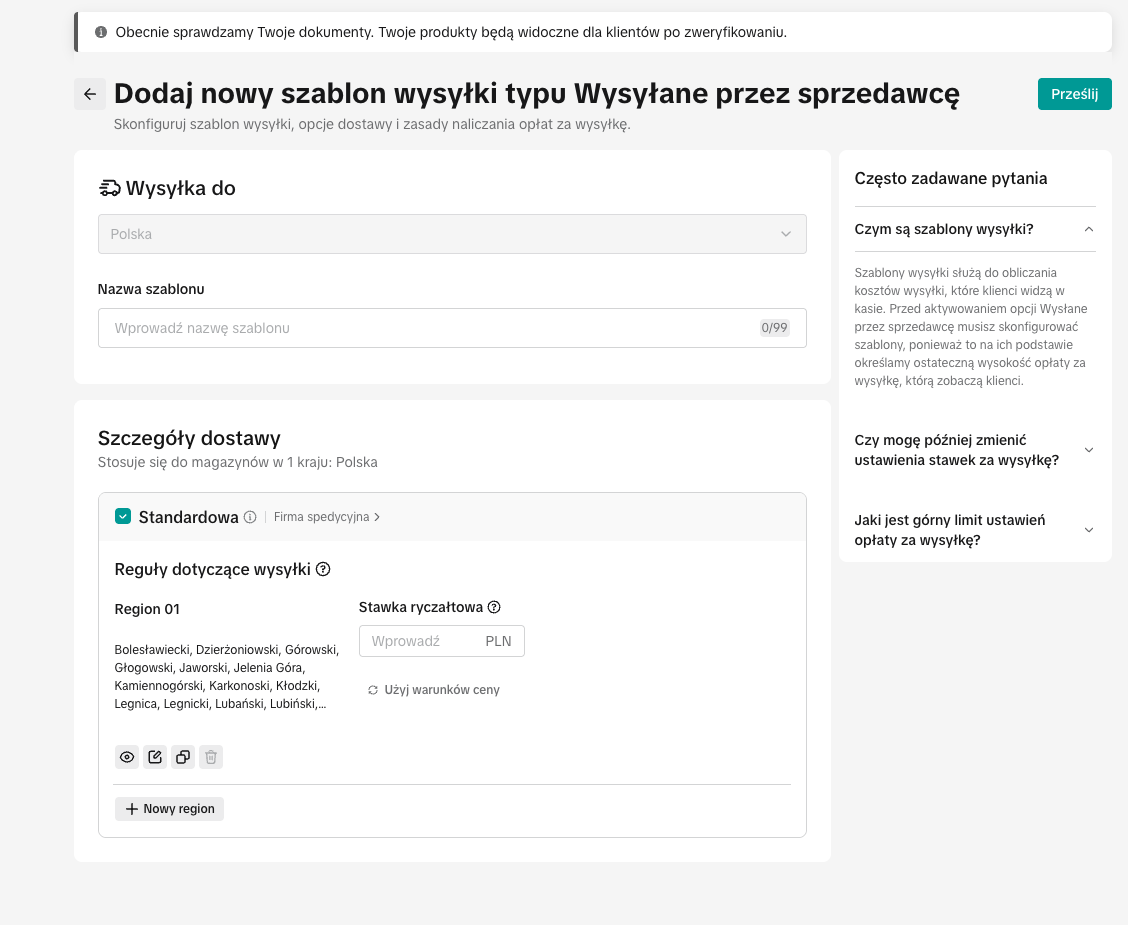 TikTok Shop shipping template
Step 10 Add first product and bank account
After saving the warehouse address, you will return to the main panel. Under „Add new products” you will see the following tasks.
The most important of these are:
TikTok Shop requires the addition of at least one product to unlock the full features of the Vendor Centre. Bank account details are needed to withdraw funds from sales.
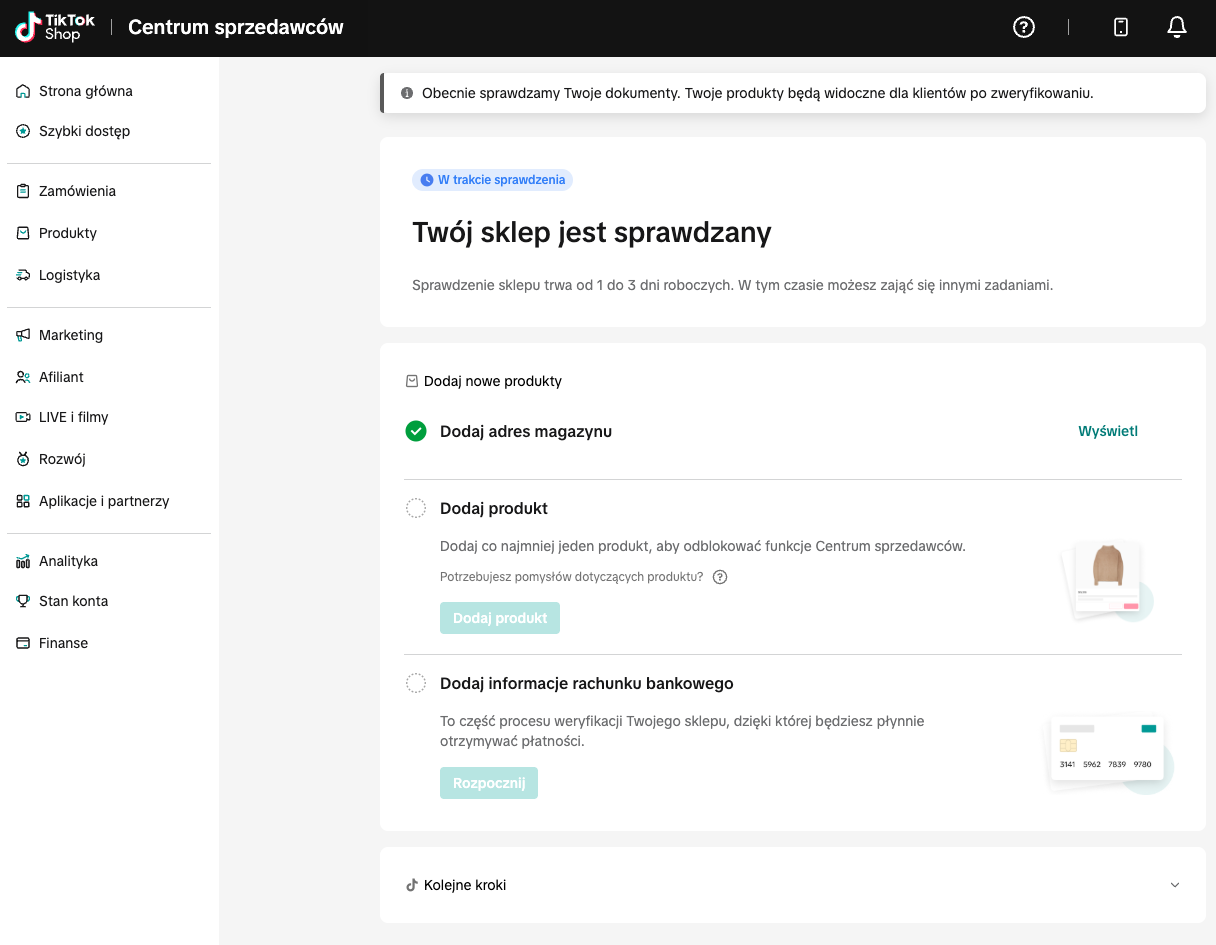 Main panel after adding the warehouse
Step 11. Check the order panel
Once you have registered, you will be given access to the TikTok Shop Vendor Centre. In the menu on the left you will find, among other things:
In the „Manage orders” panel you will see orders to be dispatched, dispatched, completed, pending and cancelled. Initially, the list will be empty until the shop starts accepting orders.
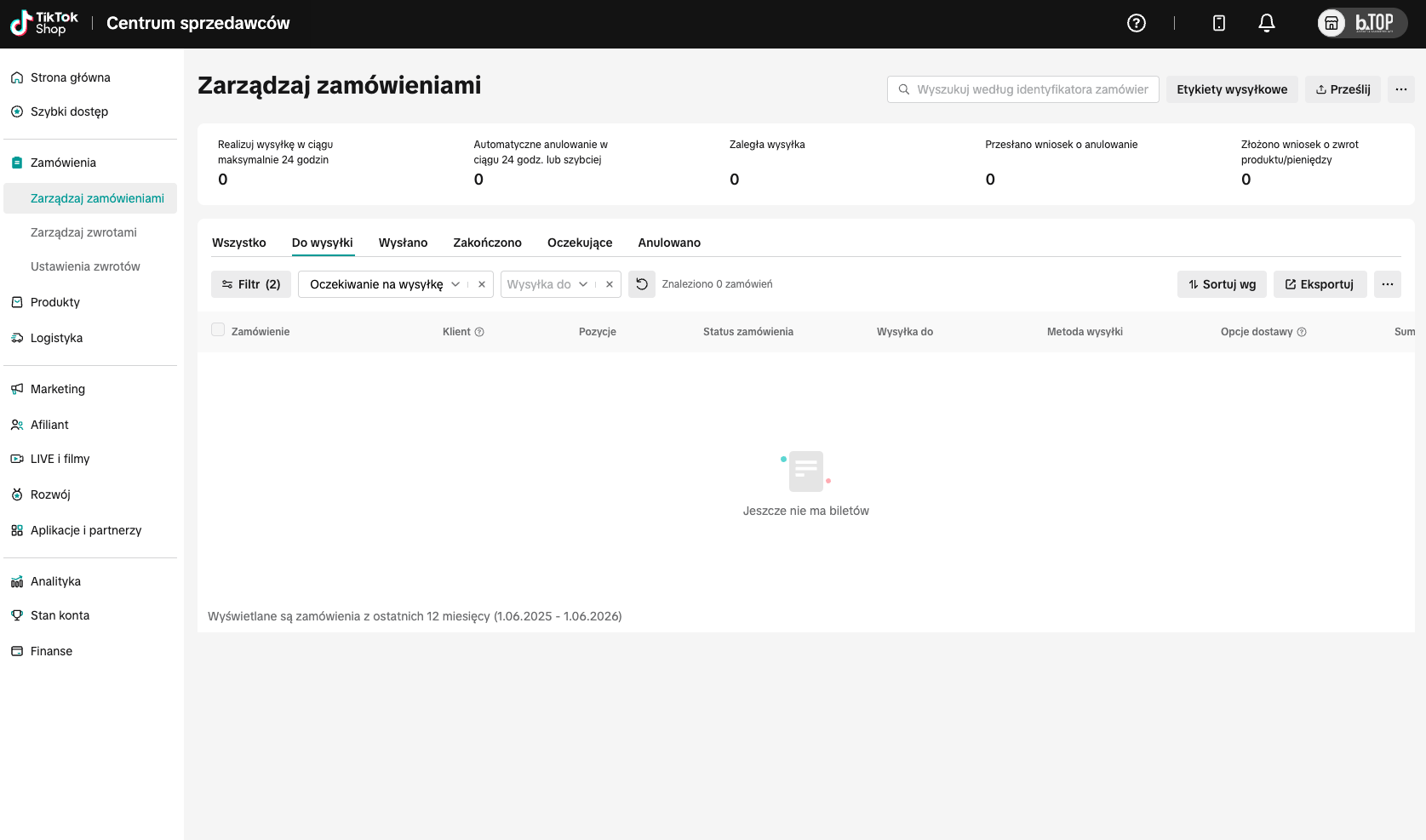 Order management panel
How long does it take to register a TikTok Shop?
The form itself can take several minutes to complete if you have all the data and documents prepared. Verification of the shop, according to the message in the panel, takes between 1 and 3 working days.
If the TikTok Shop asks for additional documents or data correction, the process may be prolonged.
The most common registration errors
The most common problems are:
It is a good idea to check all the data again before submitting the form. This is the easiest way to avoid delays in verification.
Summary
TikTok Shop registration in Poland is available via the official form for retailers:
https://seller-eu.tiktok.com/account/register?shop_region=PL
The process consists of several steps: creating an account, selecting the type of business, entering company details, verifying the representative, adding documents, configuring the warehouse, setting up shipping, adding the product and bank account. Once the data has been submitted, the shop undergoes verification, which usually takes between 1 and 3 working days.
The more thoroughly you prepare your data and documents before you start, the smoother the whole process will go.
Additional source: TikTok Newsroom - TikTok Shop in Poland.
Author of the blog: Adrian Smigiel
Date of publication: 01.06.2026r.
 Polish
  English
  German
  Czech
Czech  Hungarian
  Slovak