


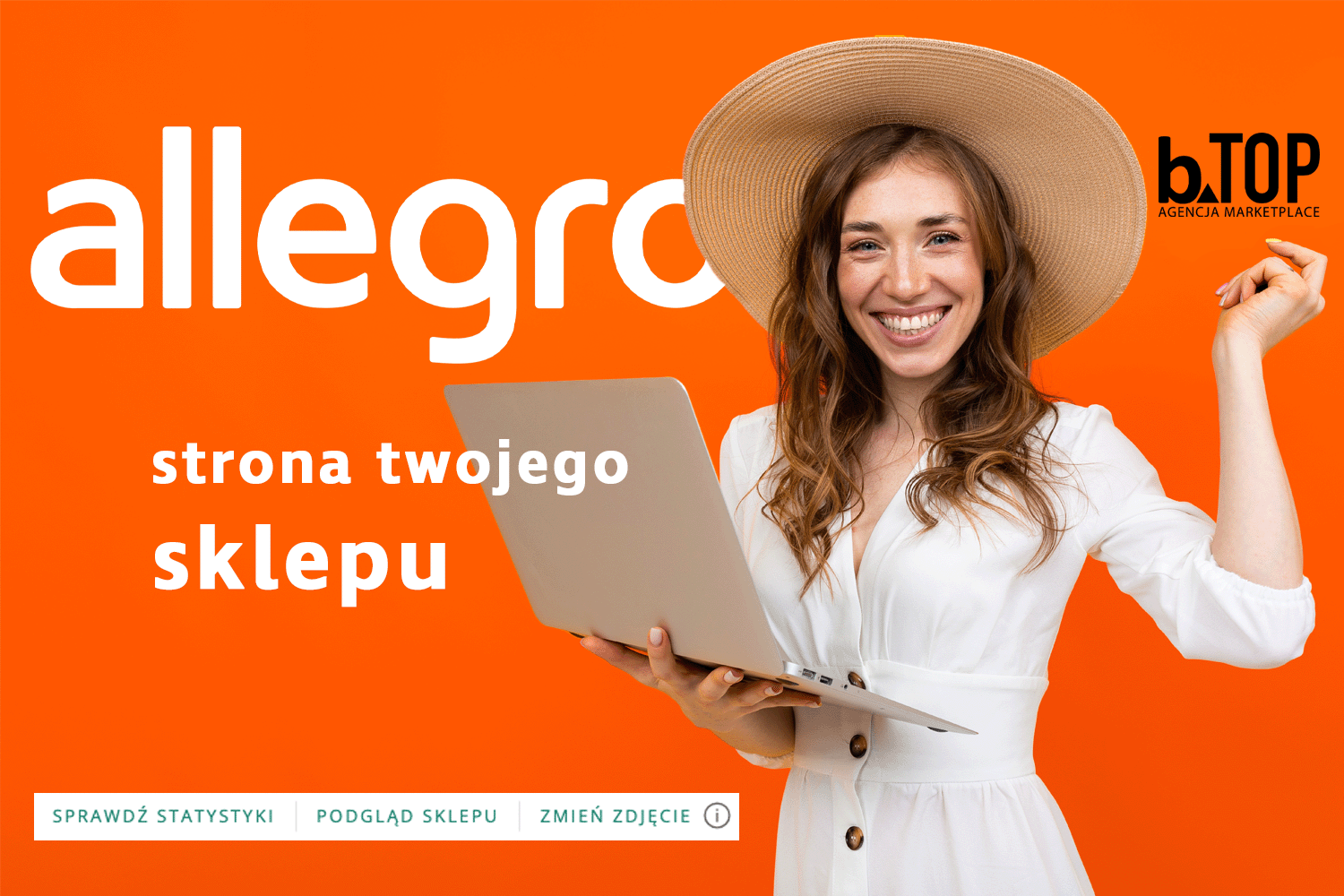
Allegro - how to magic up your shop's official website
Do you sometimes look at your Allegro shop homepage and wonder what to do to make it eye-catching? Do your banners need to be refreshed to meet current trends? No problem! We will explain step by step how to easily meet your visitors' expectations and turn your shop into a professional, Allegro-compliant site!
When updating or designing a shop from scratch, we should first of all think about what products we would like to display. In our case, we usually position the newest offers at the top, while the regular, familiar range is positioned a little lower. It is a good idea to prepare marketing banners and product ranges first.
Consistency and harmony - the key to success!
Unfortunately, one of the many complaints about editing an existing shop design is the lack of accuracy in the style of the graphics. It is important that each of our banners fits with the theme we decided on at the beginning. If you haven't established one yet, or if you want to create something new, we've already advised how to deal with this!
The most effective way to achieve graphic harmony is to take inspiration from the colours of your company logo - those that prevail. In addition, it is a good idea to stick to the same fonts and points (sizes) for lettering and slogans. This makes a huge visual difference: graphics that are consistent are gentler on the eyes and fit in with most tastes. However, this does not mean that originality is lost in the process! On the contrary, such treatments strengthen your brand, guaranteeing recognition in the market. With the basics out of the way, you can then move on to specifics.
Banners on the product page and offer listings
Allegro allows sellers to display up to five banners. These appear both when browsing your range and on the homepage, which we are writing about today (but only if you place them there). For each banner, we need to assign a link that directs the potential buyer to the group of items displayed on it. This could be a full category, or perhaps a specific search filter we have written down.
It is worth using catchy slogans, but one must bear in mind the basic ethics of the platform and consistency between the other banners. Allegro currently allows as many as three language versions of one graphic: Polish, English and Ukrainian. Detailed requirements can be found directly when uploading the image, but I will briefly remind you:
- dimensions 980 x 180 px, max 150 kB
- JPG or PNG format (we recommend the png format, which is lossless and does not lose quality)
- if you include language variations, the links must come from the relevant language market (e.g. Polish for allegro .pl)
However, we recommend including a few identifying marks of your brand, such as your logo, a slogan associated with your company or just including your brand in the colour scheme of the banner. Also try to limit the length of the texts presented - nobody likes information overload!
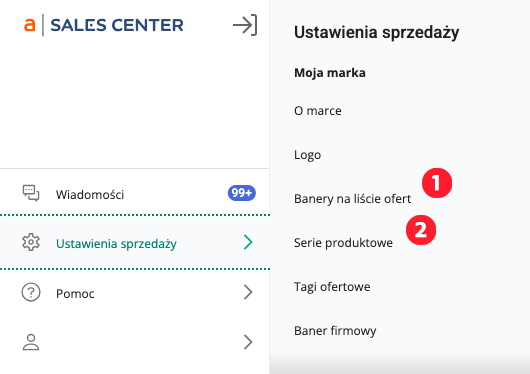
To be able to create or edit them, we need to go to the „Sales settings” tab and then scroll down and select „Banners in the offer list” (see point 1 in the image) in the Sales Centre.
Product series
Like the previously mentioned banners, we also display the product series in a couple of places - including on the homepage of your shop, if you agree to this. Here, we would rather not encourage any subtitles. We do, however, recommend, as with the banners, that you ensure harmony and a colour scheme that harmonises with your brand. The configuration of product series is available under „Sales settings” > „Product series” (see point 2 in the image above).
The maximum number of product series we can have twelve. Each has a square form (160 x 160 px up to 100 kB, jpg or png) and can also be placed in three language tabs. It is worth bearing in mind the transparency and simplicity in selecting the „face” of our product series - a representative product should be easily associated with the entire range, which we have linked to the series.
Shop homepage - step by step
When viewing our website, the first thing that will undoubtedly catch our eye is the banner in the background: the one positioned below the search engine and the icons controlling the platform. It is impossible to notice that some parts of the banner remain covered. These include the left side (where we can find a white square with various information about the shop) and the bottom right part, where we find a rectangle with links to statistics, the shop preview and the option to change the background image. The latter part is not visible to other Allegro users, so there is no need to worry about it.
By default, Allegro sets the image assigned to your most popular category. By clicking the „CHANGE PHOTO” option, you can upload your own banner. However, if you press the „i” icon, the graphic requirements are displayed:
- minimum size 1248 x 272 px
- maximum size 2048 x 1024 px
- weight up to 500 kB, JPG or PNG format
Photos above the minimum size will need to be cropped.
When designing, it is worth bearing in mind that anything you place on the left-hand side will, on larger displays such as a computer, be covered by the aforementioned square with shop information. In addition, the image will also be displayed on mobile devices (phone, tablet), so it is a good idea to keep the subtitles appropriately sized (the image gets smaller).
Other banners
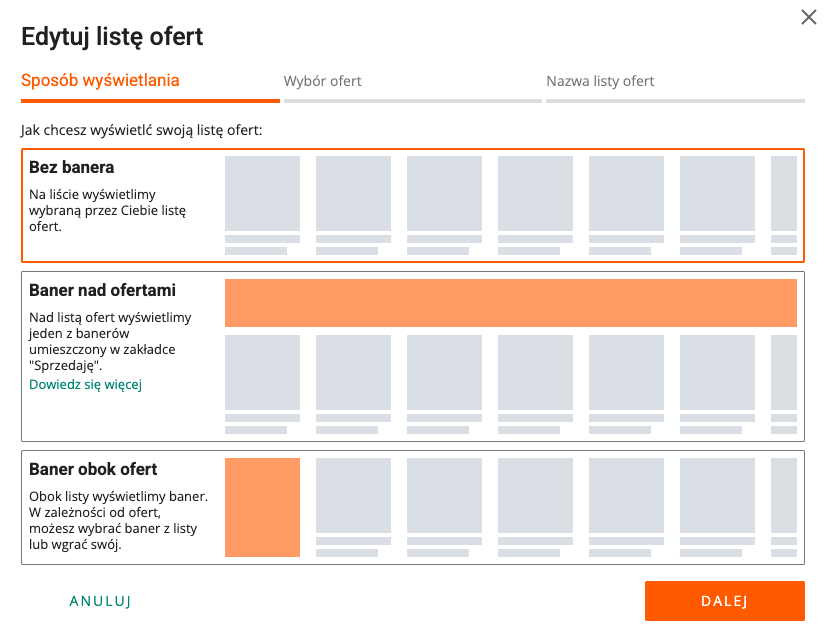
Going lower, we have the option to edit or create individual carousels of listings. For almost every one, Allegro allows you to upload a banner (which we strongly encourage you to do):
- Banner above offers - levels (i.e. one of the five we discussed earlier), selecting this option will display those products indicated by the link previously assigned to the banner
- Banner next to offers - vertical (we recommend placing it next to tabs such as „Latest offers”, „Most popular offers”, „Offers up to the amount of...” or „Single category”.”
- No banner - In our opinion, it fits in with the carousel of product series or sets
The dimensions of the individual banners can be checked directly in the upload tab.
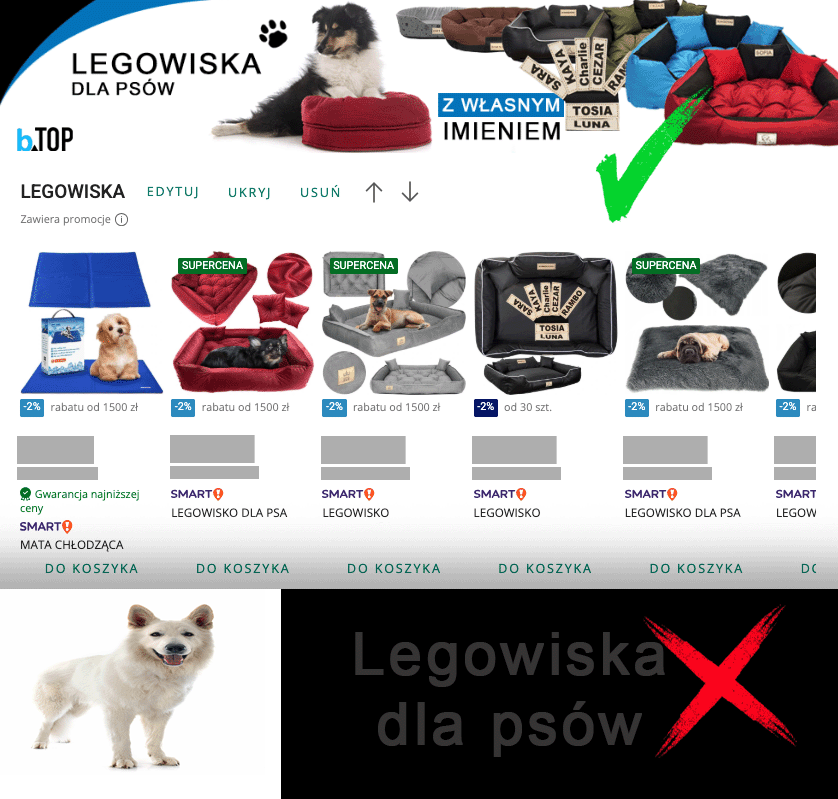
 Avoid using poor quality graphics. Keep clarity and readability in mind, especially when setting the colour of the lettering (we should not set white text on a very light background, and the same goes for dark backgrounds and black letters). Do not write down important information in so-called Easter eggs - they are difficult to read!
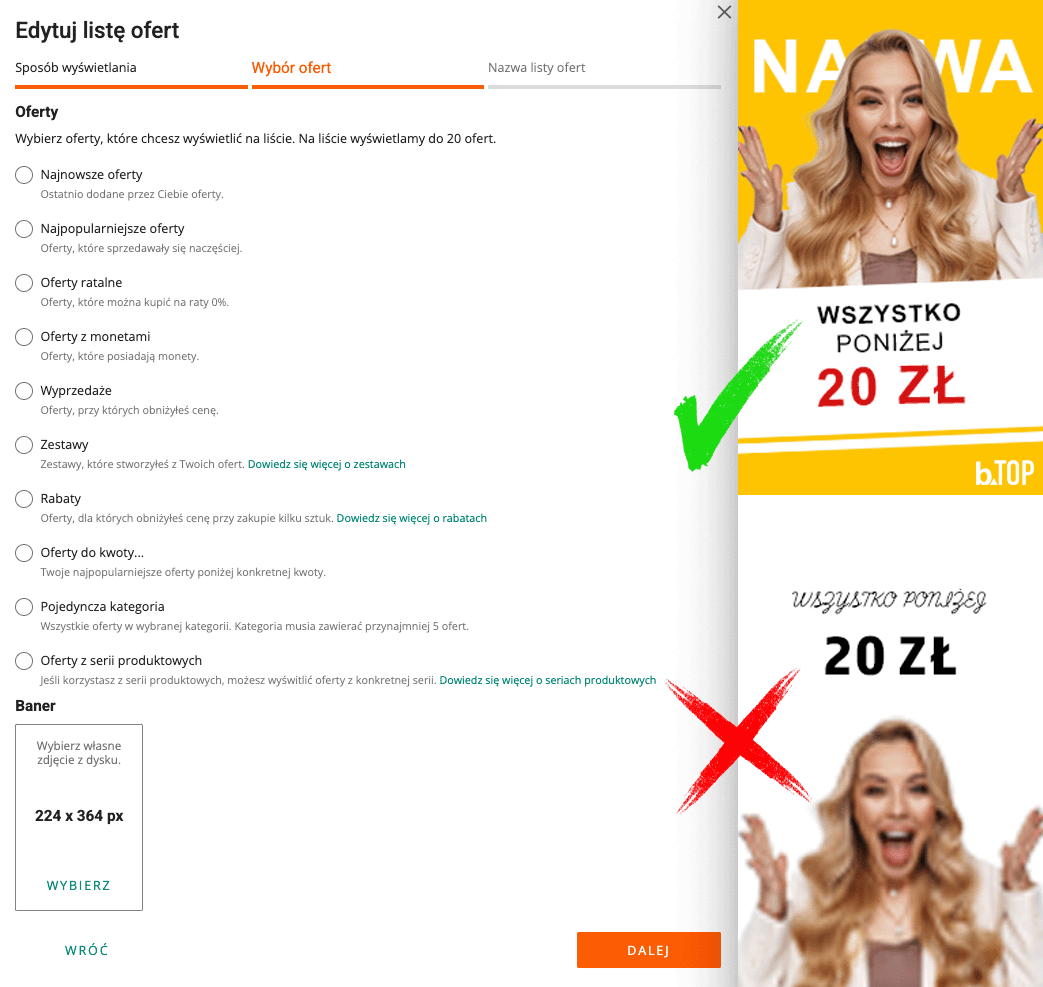
We include examples of graphics that we think are nice and those that do not meet basic readability standards.
Systematicity
Once you have your shop page ready, you must not forget to update it! After all, we don't want our business card to be outdated. Sometimes it's enough to swap the order of some sections to correlate with the current sales season, and other times one banner change to a fresher range will do the trick!
Is it worth caring about your shop page on Allegro?
Undoubtedly, many buyers prefer to search for attractive offers by means of a division created directly by the seller. It is popular with customers to select products up to a certain amount - often the interested party is unsure of his decision, so it is worth encouraging him with all that we have to offer!
Author: Nikola - bTOP Graphic Designer
Date of publication: 20.06.2025r.
 Polish
  English
  German
  Czech
Czech  Hungarian
  Slovak