



How do you list products from a file on Allegro? A step-by-step guide
Anyone who has ever listed products en masse on a marketplace is familiar with this challenge. You download a file from a wholesaler or an ERP system, open it, and there are hundreds of columns. Then you check the platform’s official template and the tedious rewriting begins: „gross price” has to become the „PRICE” column, and the EAN code needs to be changed to „GTIN”. A single mistake in the name causes the system to misread the data and treat the price as just another product parameter.
We have some great news for you that will drastically reduce the time you spend working on quotes. In the tab Import and list A revolutionary change has been introduced on Allegro: From now on, you can upload CSV files in your own format.
What’s changed? No more fixing tabular nightmares
Until now, the system was inflexible – the CSV file had to match the prescribed template exactly. Allegro has now introduced an intuitive column mapping, so you can upload the file exactly as it is.
Once the document has been uploaded, the system will display a simple panel:
- On the left-hand side You will see all the columns from your file.
- On the right-hand side The system will show how these columns map onto the Allegro structure.
If your column name matches or is similar to the platform’s structure, the system will automatically suggest a match. Otherwise, you can quickly select the relevant option yourself from the drop-down list.
Step 1: Preparing the CSV file containing the products
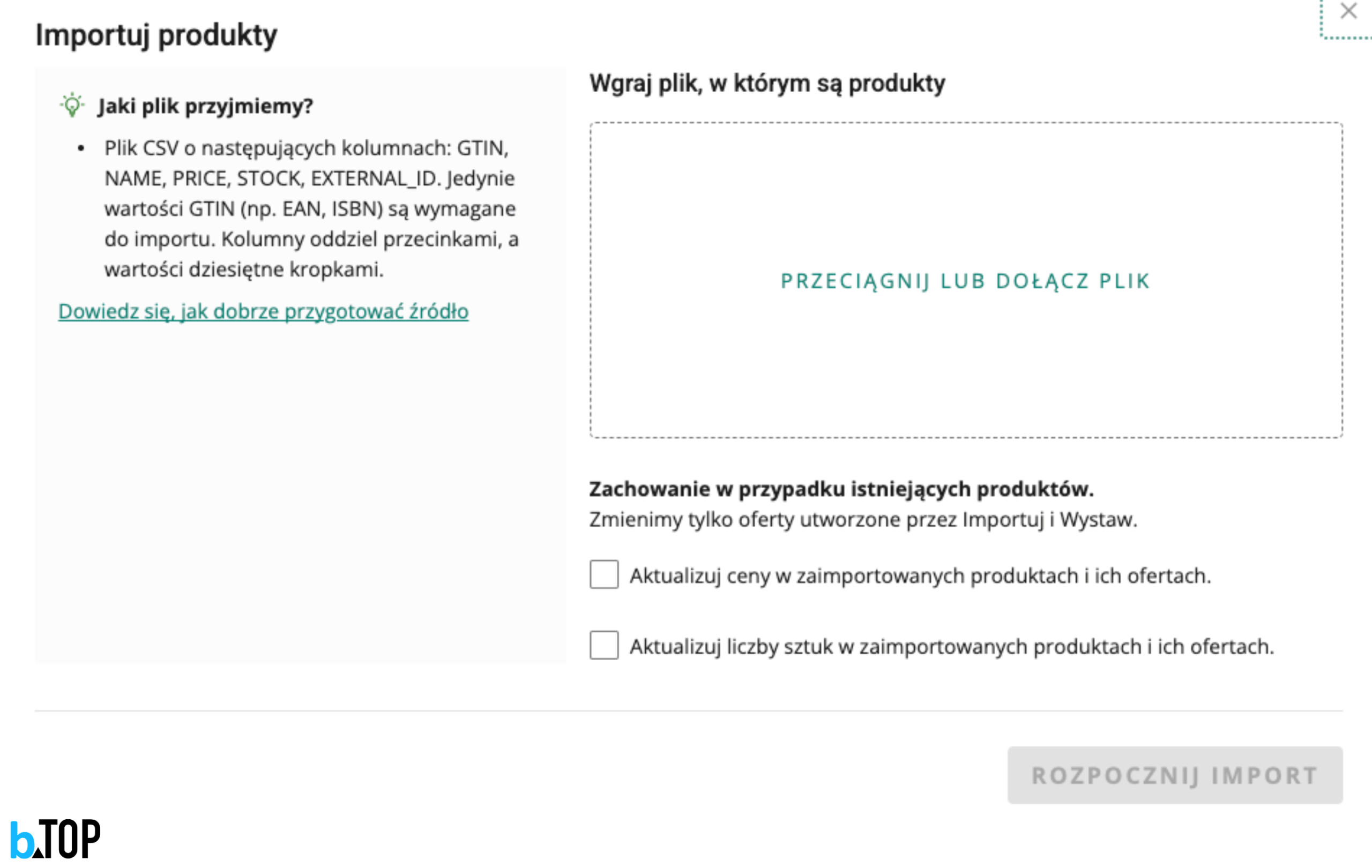
Although you no longer need to match the column names, your file must meet a few basic technical requirements:
- Format and size: Save the file in .csv format; the maximum file size is 50 MB.
- Encoding: Please ensure that the file is saved in UTF-8 encoding, which is essential for the correct display of Polish characters.
- Separator: Use a comma (,) to separate the fields.
- Special characters: If a field contains a comma or a newline character, enclose the entire contents of that field in double quotation marks. If the text already contains quotation marks, these must be doubled.
You have two options for preparing the data:
- Basic format: If your products are already listed in the Allegro Catalogue, all you need are the GTIN, NAME, PRICE, STOCK and EXTERNAL_ID columns.
- Extended format: If you are creating new products, you can add optional columns such as DESCRIPTION (which accepts simple HTML), CATEGORY, BRAND or IMAGES (links to images separated by a vertical bar |).
Tip: Any additional column that you do not map manually (e.g. COLOR, MEMORY) will automatically be treated as a product parameter. Allegro’s artificial intelligence will then attempt to match these values to the parameters applicable to that category.
Step 2: Uploading a file and submitting bids
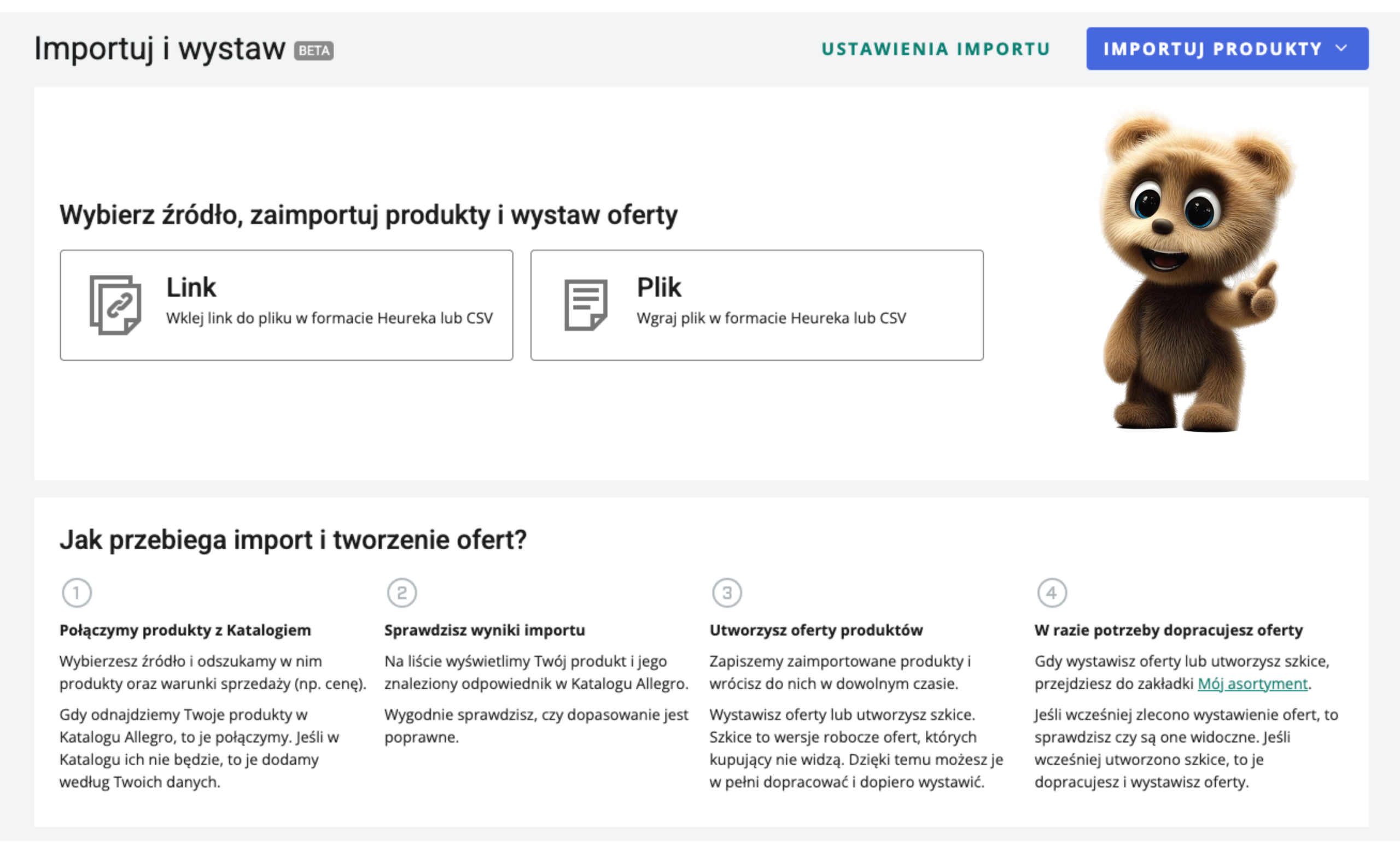
You can only use this option on a business account. The whole process can be completed in just a few steps:
- Go to the tab Import and list.
- Select the following as the data source Link or File, then add a link to the file or upload a CSV file from your hard drive.
- Click the button [start import] – the system will automatically check the file and extract information from it.
- Make the most of column mapping, to adapt your format to Allegro’s structure.
- Once you have imported the products, select the ones you want from the list and click [create a quote].
- Decide whether you want to list new offers straight away or create sketches (draft versions that are not visible to buyers).
Step 3: Checking product statuses
Once the data has been imported, you will see a status next to each product indicating the current stage of verification:
- Changes are underway: The system is processing the data, or the artificial intelligence is filling in the parameters. Please wait a moment.
- To be issued: The product is complete, and you can start selling straight away without any problems.
- To be completed: There are some gaps in the information. You can fill them in now or create a draft of the offer and finalise it later.
- To be improved: A problem has arisen because the system could not find a match in the Allegro Catalogue. Please correct the error to continue.
- A proposal or draft exists: You already have a ready-made offer for this product, and you can check its status in the ‘My Product Range’ tab.
Step 4: Category mapping and AI support
Before a product is listed on Allegro, it must be assigned to the correct category. If the system cannot find a match in the Catalogue, two options are available:
- Automatic AI mapping: The artificial intelligence will attempt to assign the appropriate category based on the description or brand, and to complete the parameters (including the manufacturer’s GPSR safety data). All fields completed by the AI will be marked with three asterisks (***).
- Manual category change: If you think the system has made a mistake with the categorisation, you can change the category for a group of products or for a single product. Simply click on the three-dot icon and select the [set category] option.
Important: As a seller, you are always responsible for ensuring that your details are correct. Always check the information filled in by artificial intelligence before finally activating your listings.
Step 5: Managing quotations and rectifying omissions
If any data was missing from the imported products (e.g. delivery price list or returns policy), Allegro will create drafts of them in the tab My product range. You can top them up very quickly in bulk:
- Go to the tab My product range and click on the option Fill in the gaps next to the „draft” status.
- Tick the offers you want from the list.
- Click on the green bar at the bottom Terms and Conditions of Sale and select the option you’re interested in (e.g. Price or Delivery price list).
- Enter the correct value and click [save].
Once the bids are complete, the system will activate them and the status will change to active – From now on, customers can buy your range of products.
Summary
The new CSV import feature with custom formatting is a huge help. It saves hours of tedious work in spreadsheets and allows you to synchronise stock levels instantly from external warehouse or ERP systems.
Would you like to set up bulk product listing in your shop, or do you need help optimising your sales? Get in touch with our agency – we’ll help you fully automate your e-commerce business!
Blog author: Specialist in. Allegro – Paulina Kardaś
Date of publication: 7 July 2026.
 Polish
  English
  German
  Czech
Czech  Hungarian
  Slovak